![Bebop_B_Dark-1 (1).png]](https://help.bebop.ai/hs-fs/hubfs/Bebop_B_Dark-1%20(1).png?height=40&name=Bebop_B_Dark-1%20(1).png)
Where to Find It
Click Assets in the left navigation menu. You'll land on your full asset library showing everything Bebop has generated for you.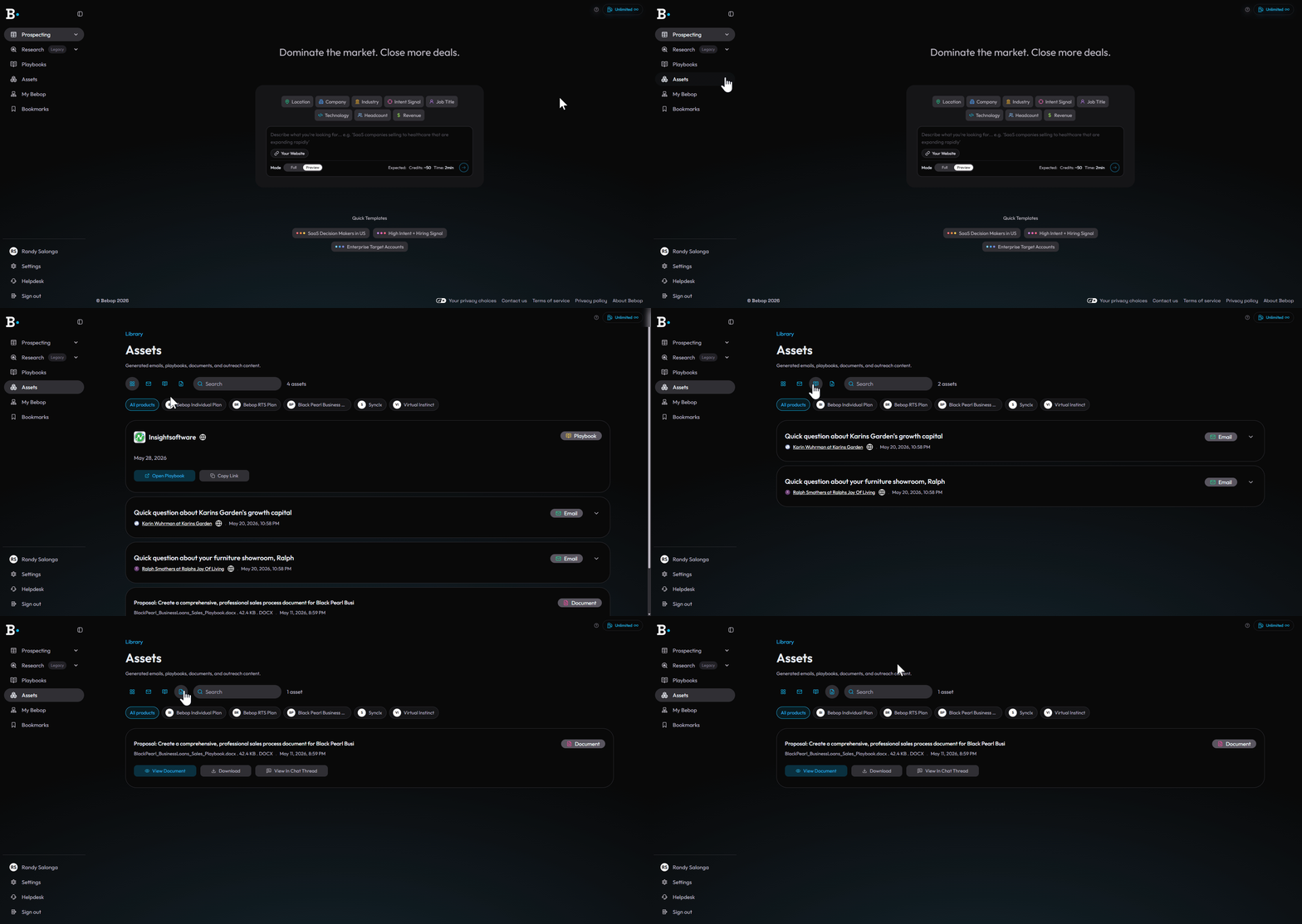
What Gets Saved to Assets?
Bebop only saves content you specifically ask it to generate. Nothing is added automatically without a request from you. Here's what ends up in Assets:
| Asset Type | What it is |
|---|---|
| Playbooks | Sales playbooks generated for specific companies |
| Emails | Outreach emails written by Bebop for specific contacts |
| Documents | Word docs, PDFs, and PowerPoint files you asked Bebop to create |
How to Find What You're Looking For
Filter by type — at the top of the Assets page you'll see filter icons. Use these to view only Playbooks, only Emails, or only Documents.
Search — use the search bar to find a specific asset by name, company, or contact.
What You Can Do With Each Asset
Playbooks:
- Open Playbook — view the full playbook inside Bebop
- Copy Link — share the playbook with a colleague
Emails:
- Expand to read the full email content
- Copy and use directly in your outreach
Documents:
- View Document — preview the document inside Bebop
- Download — save the file to your device
- View in Chat Thread — go back to the original session where it was created
Assets Across Sessions
One of the biggest improvements in Bebop 2.0 is that your work no longer disappears when you close a session. In Bebop 1.0, if you closed a chat, everything generated in that session was gone.
In Bebop 2.0, the Assets tab means:
- Every piece of generated content is permanently saved
- You can come back days or weeks later and find everything exactly where you left it
- You never have to regenerate something you already created
Tips
- Check Assets before regenerating — if you've already created something similar, it's probably already in there
- Use the Product filter — if you have multiple products set up, filtering by product keeps things organised
- Share Playbook links with your team — the Copy Link option on playbooks makes it easy to collaborate
Need help? Visit the Bebop Help Centre or book a support session with the team.