![Bebop_B_Dark-1 (1).png]](https://help.bebop.ai/hs-fs/hubfs/Bebop_B_Dark-1%20(1).png?height=40&name=Bebop_B_Dark-1%20(1).png)
Products and Documents — What's the Difference?
- Product — represents something you sell — a plan, a service, an offer, or a use case
- Document — supporting material that lives inside a Product — brochures, pitch decks, case studies, pricing sheets, anything that helps Bebop understand what you're selling
Think of Products as the folders and Documents as what's inside them.
Getting to My Bebop
Click My Bebop in the left navigation menu. You'll land on the Products screen — this is your home base for everything.
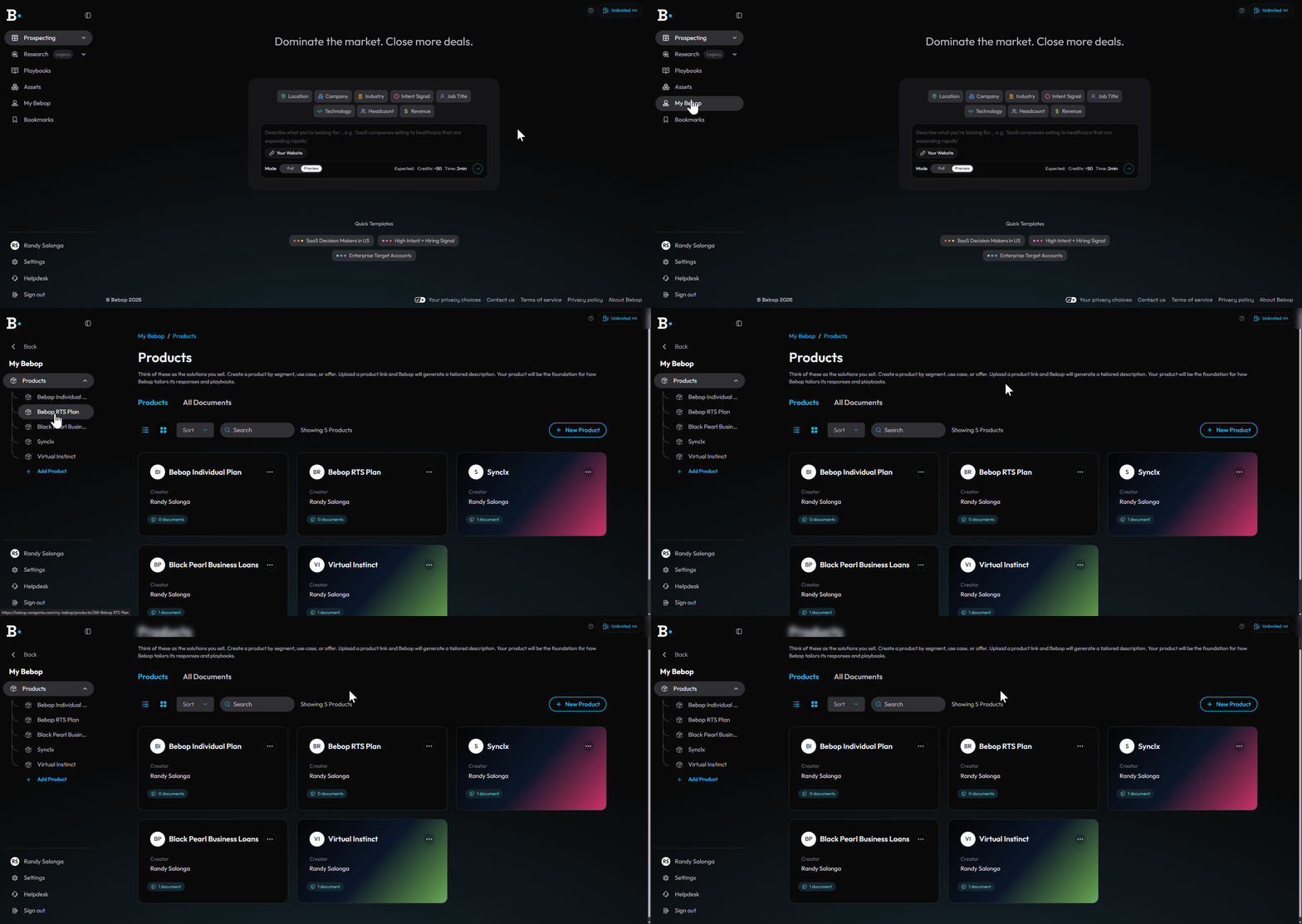
The Products screen in My Bebop — your home base for everything.
Step 1 — Create a Product
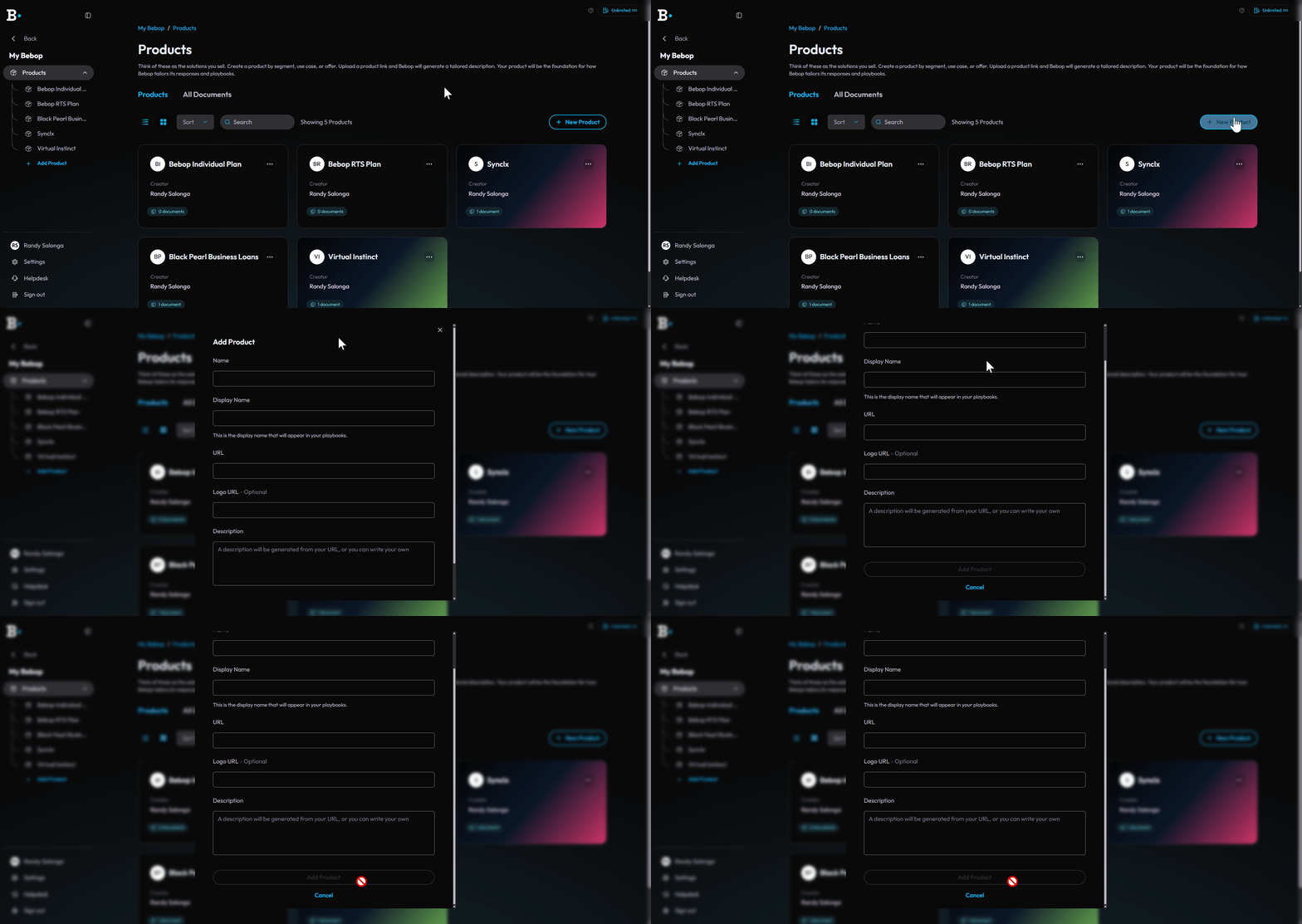
The Create a Product form.
Fill in the following:
- Name — internal name for the product, only you see this
- Display Name — the name that will appear in your Playbooks
- URL — your product or landing page URL, Bebop uses this to generate a description automatically
- Logo URL — optional, add a logo URL to brand your product card
- Description — Bebop auto-generates this from your URL, or you can write your own
Once you're happy, click Add Product.
💡 Tip — If you sell different things to different types of buyers, create a separate Product for each. This keeps your Playbooks sharp and specific.
Step 2 — Add Documents to Your Product
Click into any Product to open it. You'll see two tabs — Overview and Documents. Click Documents then hit + New Document.
The Add Document modal will appear. You have two options:
- Drop or choose files — upload an existing file like a PDF, pitch deck, or case study
- Create manually — write or paste content directly into Bebop
Your document will be automatically assigned to the Product you're in. You can also assign it to multiple Products using the Assign to Products dropdown.
The All Documents Tab
Back on the main Products screen, you'll notice an All Documents tab next to Products. This is a flat view of every document across all your Products — useful when you want to find something quickly without digging through individual Products.
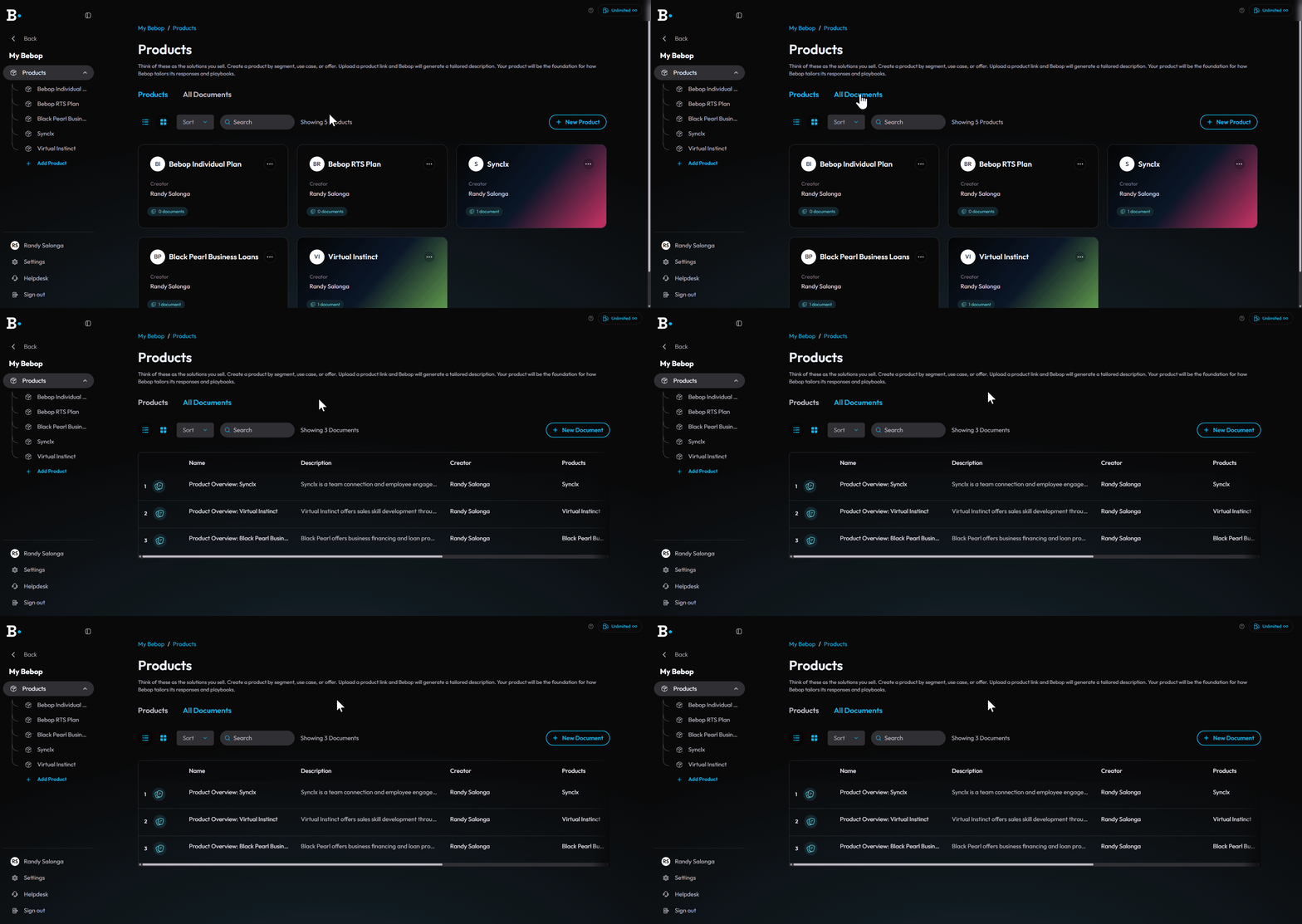
The All Documents tab — a flat view of every document across all your Products.
How Bebop Uses Your Products and Documents
Once set up, your Products and Documents are referenced every time Bebop generates something for you:
- Playbooks — built around your Product's description and supporting Documents
- Outreach emails — written in the context of what you sell
- Prospecting — the Your Website button on the search screen pulls from your Products setup
The more context you give Bebop, the better everything it generates will be.
Tips for Getting the Best Results
- Add a URL when creating a Product — Bebop generates a description automatically, saving you time
- Keep Products focused — one product per offer or use case works better than one catch-all product
- Upload real sales materials as Documents — pitch decks, one-pagers, and case studies give Bebop rich context to work with
- Update your Documents when your offer changes — outdated information leads to outdated Playbooks
Need help? Visit the Bebop Help Centre or book a support session with the team.