![Bebop_B_Dark-1 (1).png]](https://help.bebop.ai/hs-fs/hubfs/Bebop_B_Dark-1%20(1).png?height=40&name=Bebop_B_Dark-1%20(1).png)
Getting to the Audience Builder
When you start a new search in Bebop 2.0, the Audience Builder is right there on the main search screen. You'll see a row of filter chips at the top and a free-text input below them.
The Filter Chips
There are 8 filters you can use to define your audience:
- Location — target companies in a specific city, state, or country
- Company — search for or include specific companies by name
- Industry — filter by industry type or sector
- Intent Signal — target companies showing specific buying signals right now
- Job Title — focus on specific decision maker roles
- Technology — find companies using specific tools or platforms
- Headcount — filter by company size
- Revenue — filter by estimated annual revenue
You don't need to use all of them — just add the ones that are relevant to your search.
How to Use the Filters
Click any filter chip to open its dropdown. Type what you're looking for and select from the autocomplete suggestions — or type freely if you don't see an exact match.
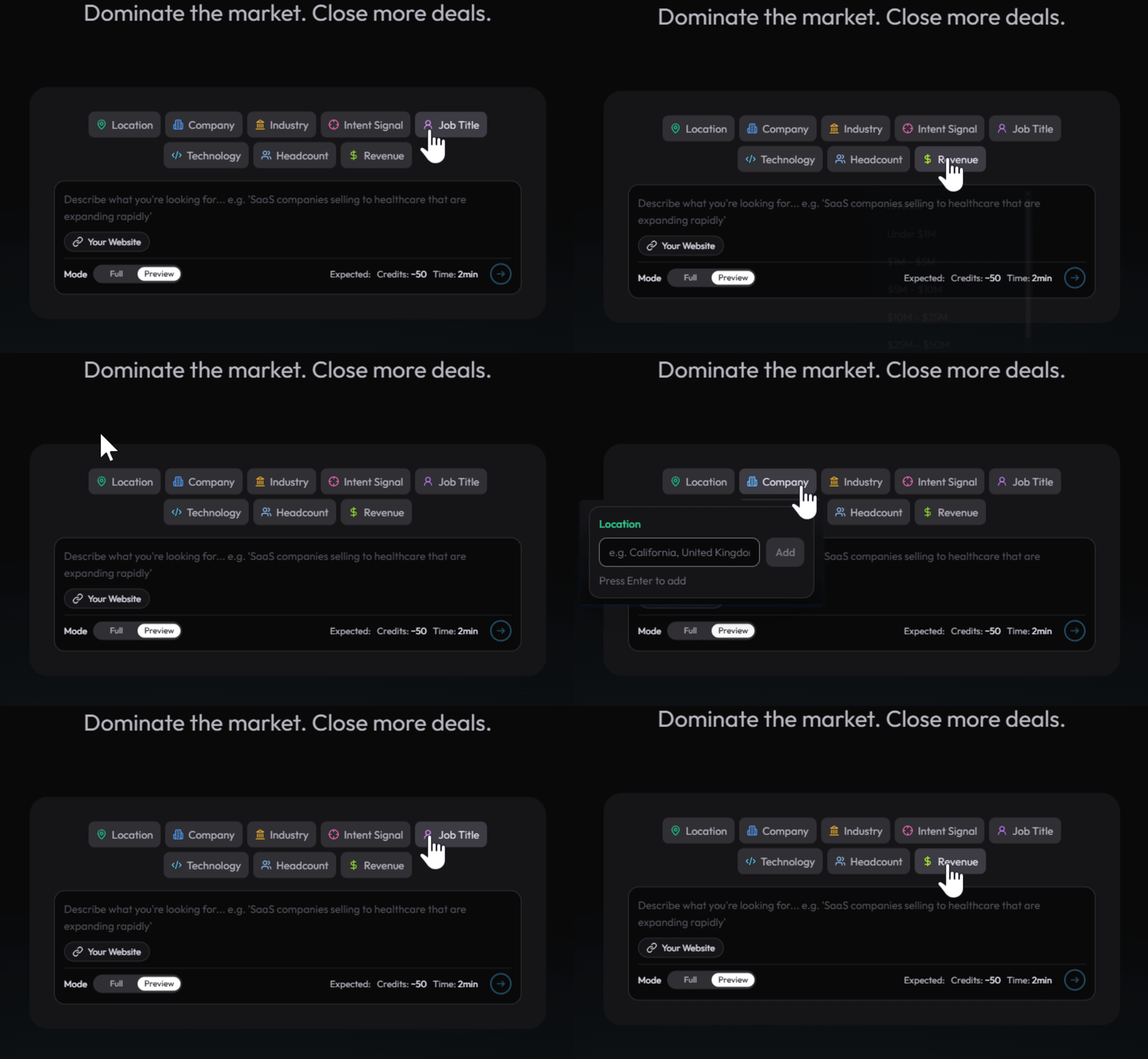
Clicking a filter chip and selecting from the autocomplete suggestions.
Once you click a filter and make a selection, it gets added to your search. You can add multiple values to the same filter — for example, two locations or three industries.
Multiple values added to the same filter.
Free-Text Search
Prefer to just describe what you're looking for? The text input below the filter chips works exactly like Bebop 1.0 — type naturally and the AI will interpret your prompt.
You can also combine both. Add a couple of filter chips to set the boundaries, then use free-text to describe the nuance. Bebop applies everything together.
Example: Set Headcount to 50-200 and Location to Texas, then type "SaaS companies expanding into new markets" in the free-text box.
Your Website
See the Your Website button below the text input? Click it to let Bebop pull context directly from your own website — so it understands what you sell and targets companies that are a fit without you having to explain it every time.
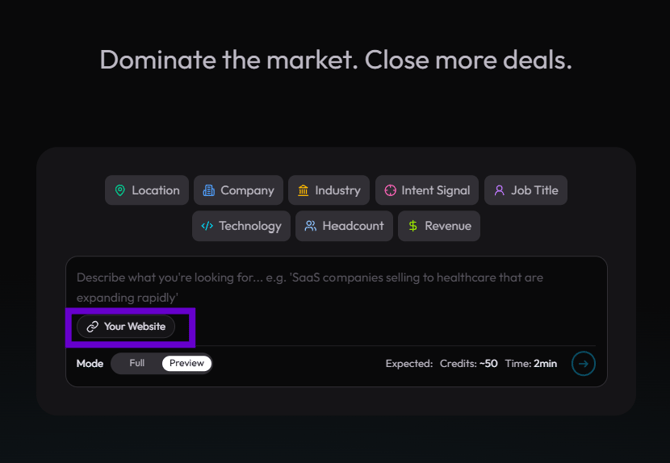
The Your Website button below the free-text input.
Choosing Your Mode
At the bottom of the Audience Builder you'll see the mode selector — Full or Preview.
- Preview — runs in ~2 minutes and returns 2-3 results so you can check your direction before committing
- Full — runs for 5-15 minutes and returns 80-200+ results once you're confident
Before you hit run, Bebop shows you the expected credit cost and time for your search right there on screen — so you always know what you're committing to.
Tips for Better Results
- Start with Preview Mode first — sense-check your filters before running a full search
- Don't over-filter — adding too many narrow criteria can reduce your results. Start broader and refine from there
- Use Intent Signal — this is one of Bebop's biggest strengths. Combining Intent Signal with Industry or Job Title surfaces companies that are actually in-market right now
- Use free-text for context, filters for boundaries — filters set the hard criteria, free-text adds the nuance
Need help? Visit the Bebop Help Centre or book a support session with the team.